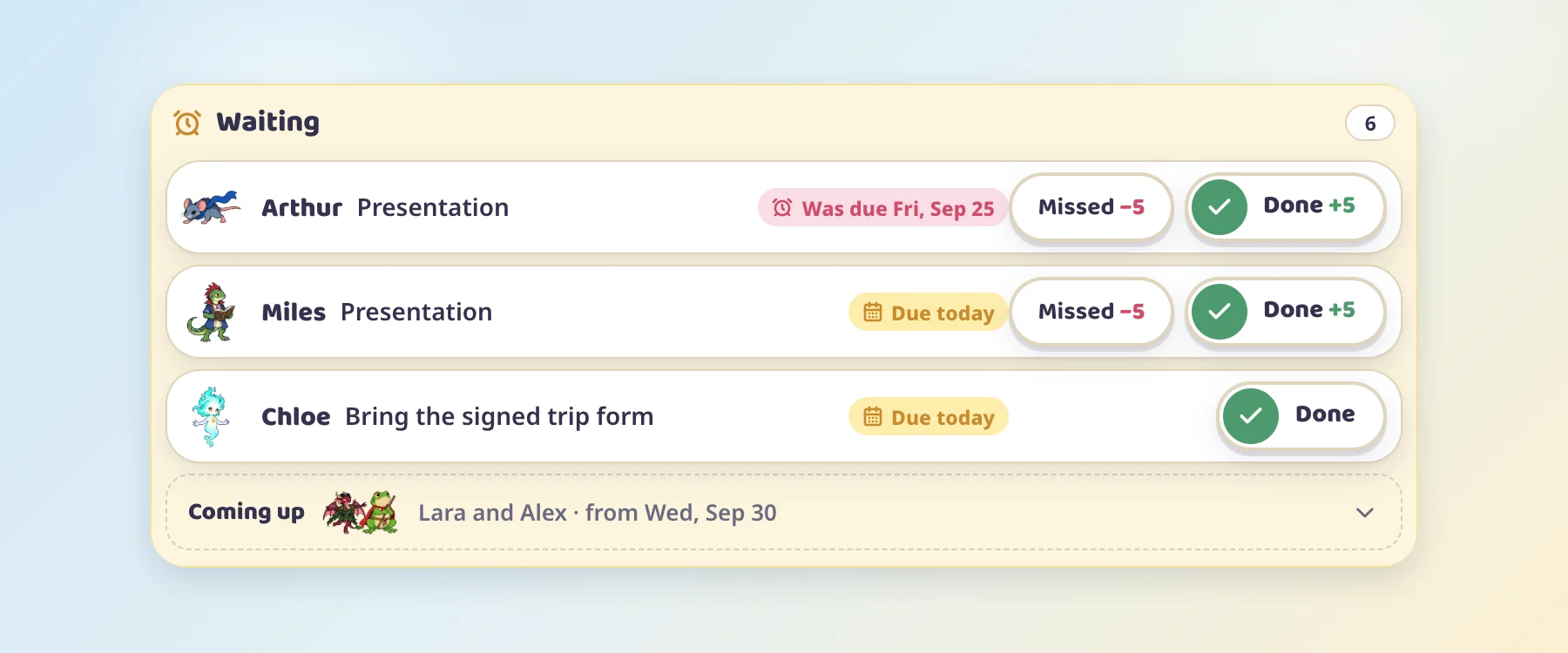
When a student owes you something, like a presentation next lesson or a signed trip form, Notes now keeps track of it. On the day it waits at the top of the window, and one tap on Done or Missed settles the points.
What goes where
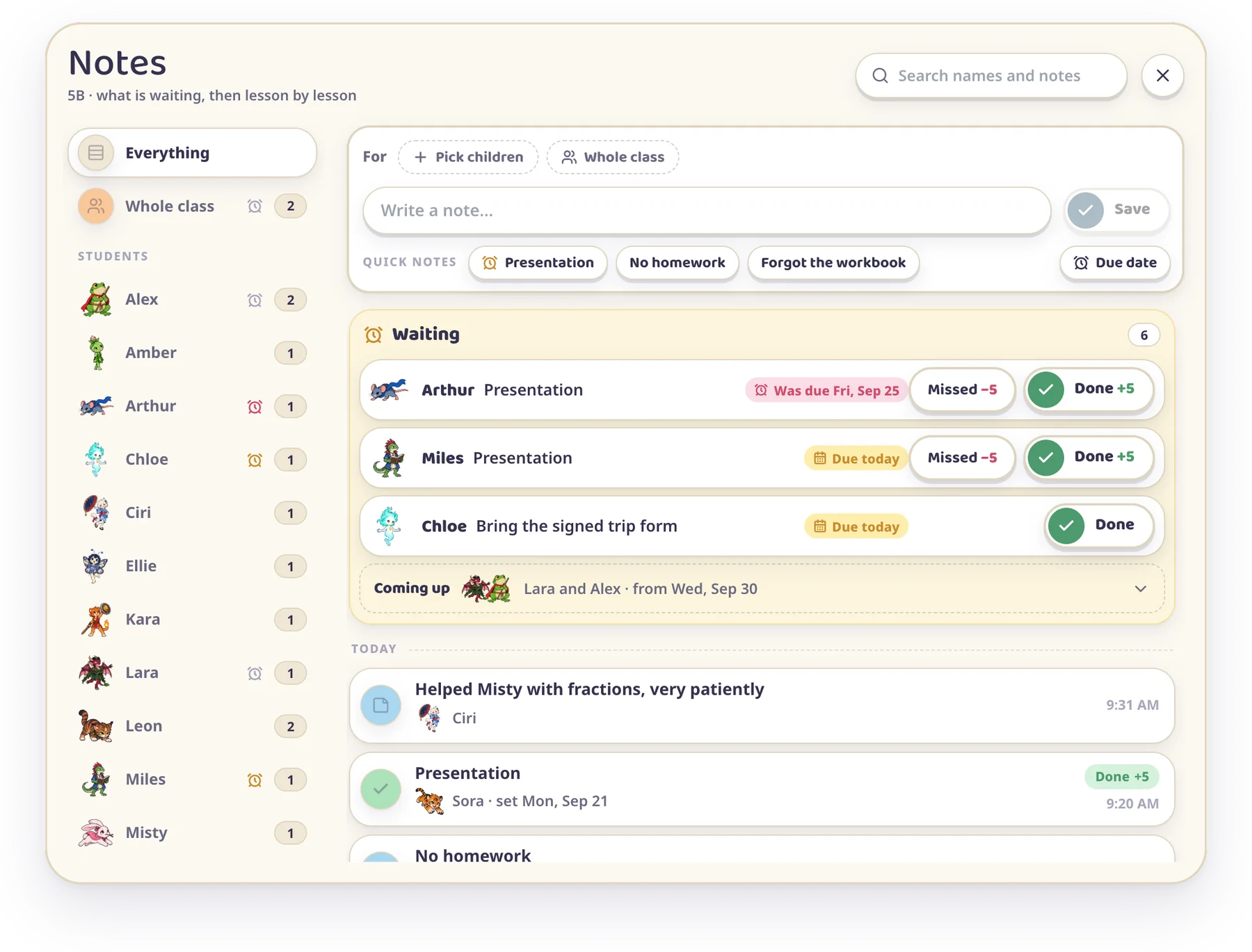
Open Notes from Tools on the class screen. It opens on the whole class, and each part of the window has one job.
1234567
Your class down the left: Everything, Whole class, then every student with the number of notes they have.
Search finds a name or any word you wrote.
The write line. Choose who the note is for, write it, and press Save or Enter.
Quick notes: the things you write most often, ready to tap.
Due date turns the note into a follow-up, with a day and points.
Waiting: follow-ups that are late or due today, each with Done and Missed.
The log: everything you wrote, lesson by lesson, newest first.
One note for several students
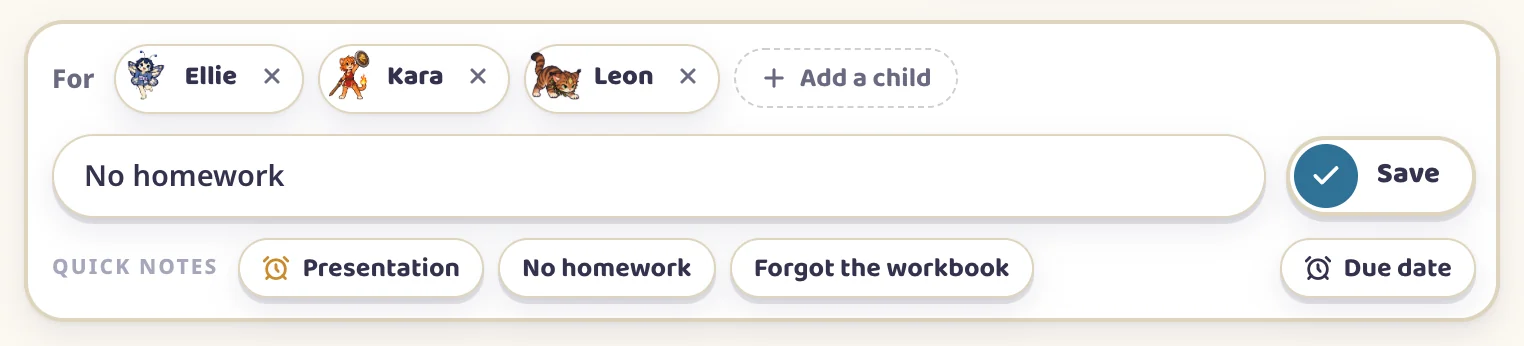
When three students come without homework, press Pick children, tick all three and write the note once.
Written once, saved for each of them
The log shows it as one line with all three faces, and each student also finds it on their own page. For a note about the whole class, press Whole class instead of picking students.
Give it a due date
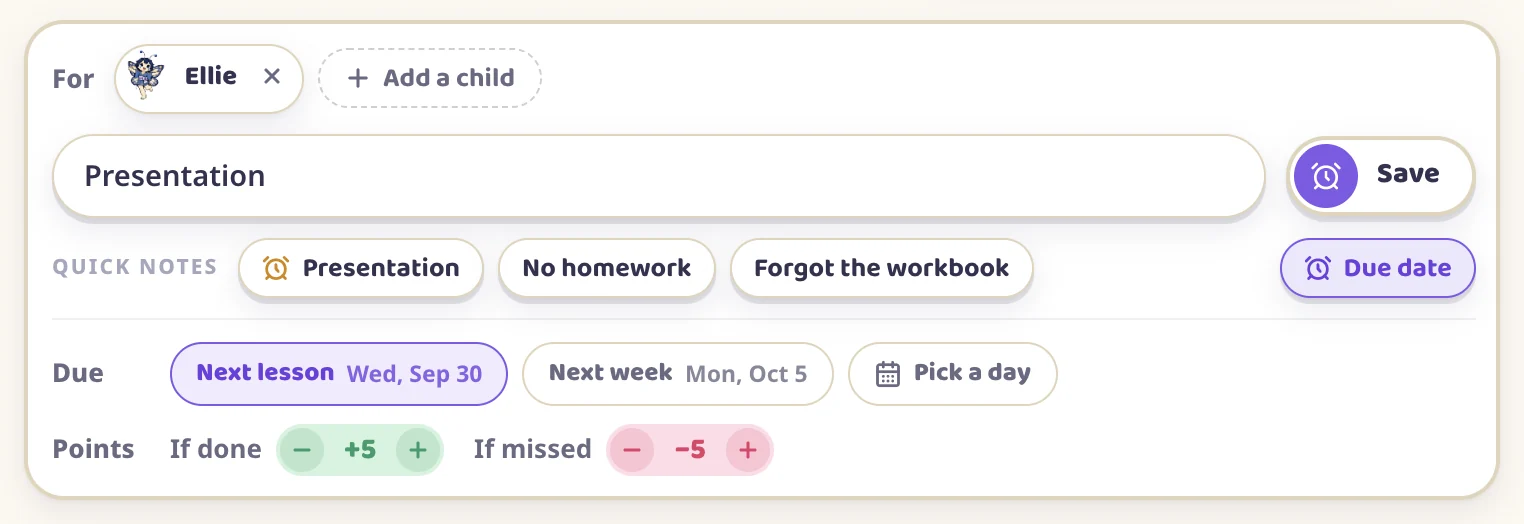
Some notes need an answer later, like a presentation or a form to bring back. Write the note, press Due date and choose the day. Next lesson follows the class timetable (a class with no days on its timetable gets Tomorrow instead), and Pick a day opens the calendar.
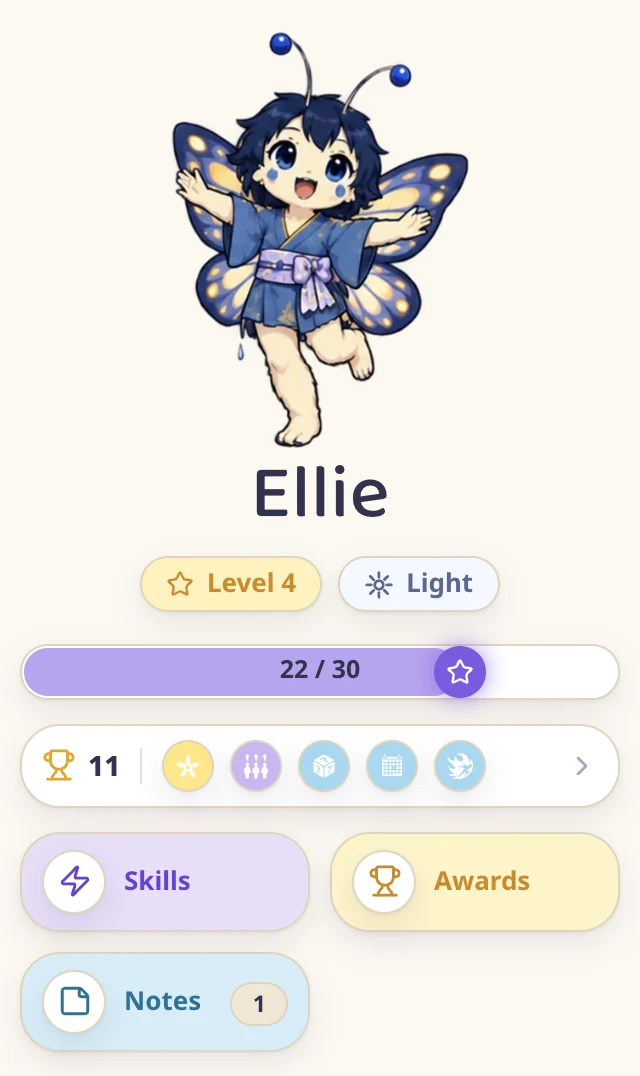
Ellie presents next lesson: five points if she does, five off if she doesn't
Then set the points: how many the student gets if it's done, and how many they lose if it's missed, up to 20 each way. Leave both at zero and the note is simply a reminder. A follow-up for the whole class is always a reminder.
A follow-up you set three times joins your quick notes and keeps its points. Tap Presentation and it comes back with +5 and −5, due next lesson.
Done or Missed
On the day, the follow-up waits at the top of Notes. Late ones are red and today's are yellow. Anything due later folds into Coming up, so the list stays short, and the students on the left get an alarm clock in the same colour.
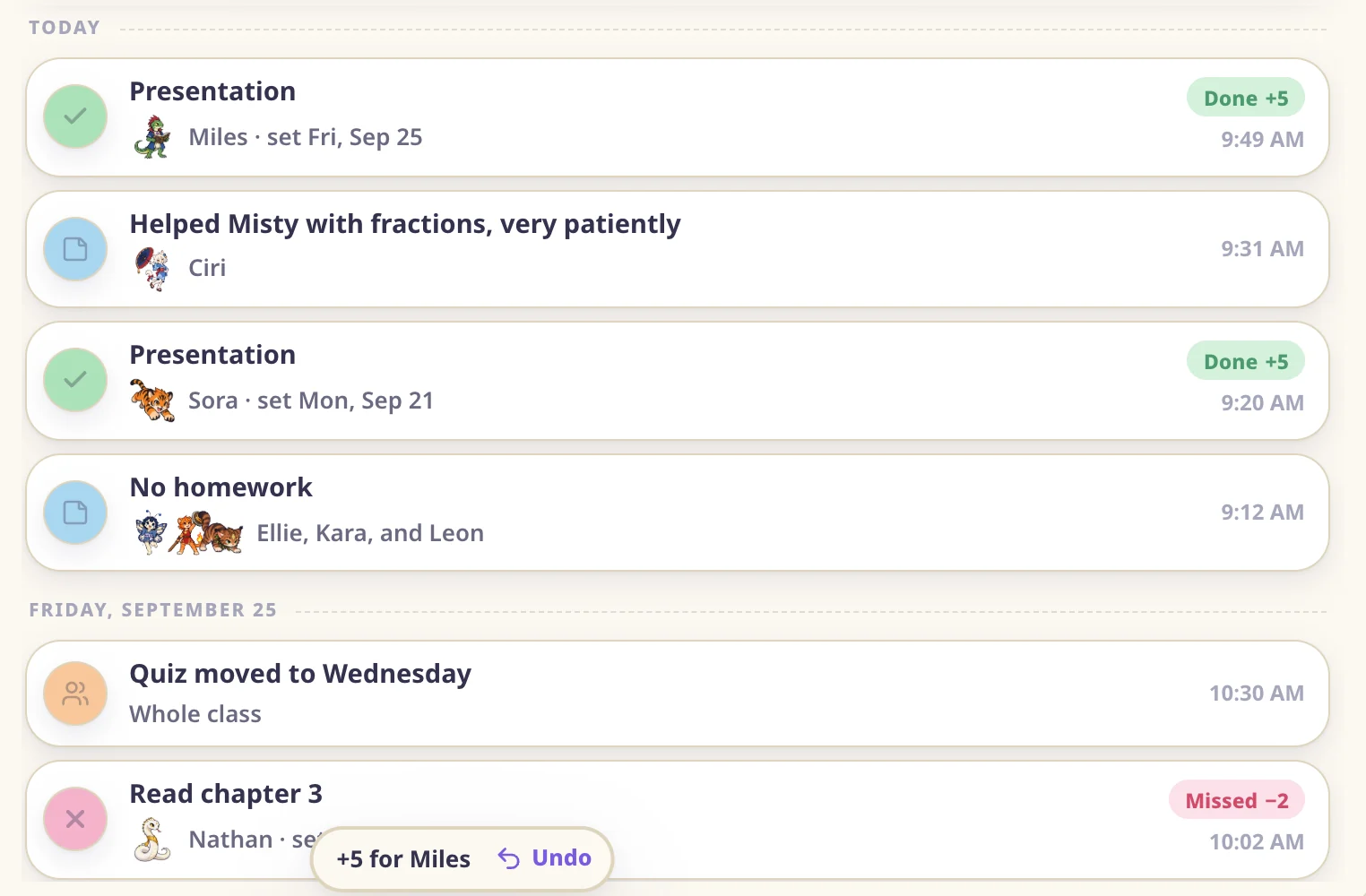
Press Done and the student gets the points the way a point button gives them, with the sound, and with a level-up if they reach one. Missed takes the points away. Either way the answer goes into the log under today, with the day you set it.
Miles presented: his +5 is in the log, and Undo waits at the bottom
If you press the wrong one, Undo stays at the bottom of the window for five seconds. After that, the undo arrow on the answer in the log takes back the answer and its points, and the follow-up returns to Waiting.
The log, lesson by lesson
Below Waiting, everything you wrote stands day by day, newest first, with the answers to follow-ups among your notes. The points from your point buttons stay in Reports, so the log holds only what you wrote. It opens on your last 30 days of notes, and Show earlier goes further back.
Notes for one student
Tap a student's card and press Notes under their character. The window opens on that student: their follow-ups, their log, and the write line already set to them.
Right-clicking the card and choosing Notes does the same.
GOOD TO KNOW
Students never see your notes. A note reaches a parent only if you tick it on that student's page in Reports.
Umi reads your notes too. Ask her what you wrote about a student this week, or ask her to write a note down. Due dates and answers stay your own taps.
Notes need an internet connection, because they save straight to your account.