✦ UPDATE · SEPTEMBER 21, 2026
Your phone is now the class remote
Teach from anywhere in the room. Your phone controls the class screen: random picks, the timer, groups, points and the class games.
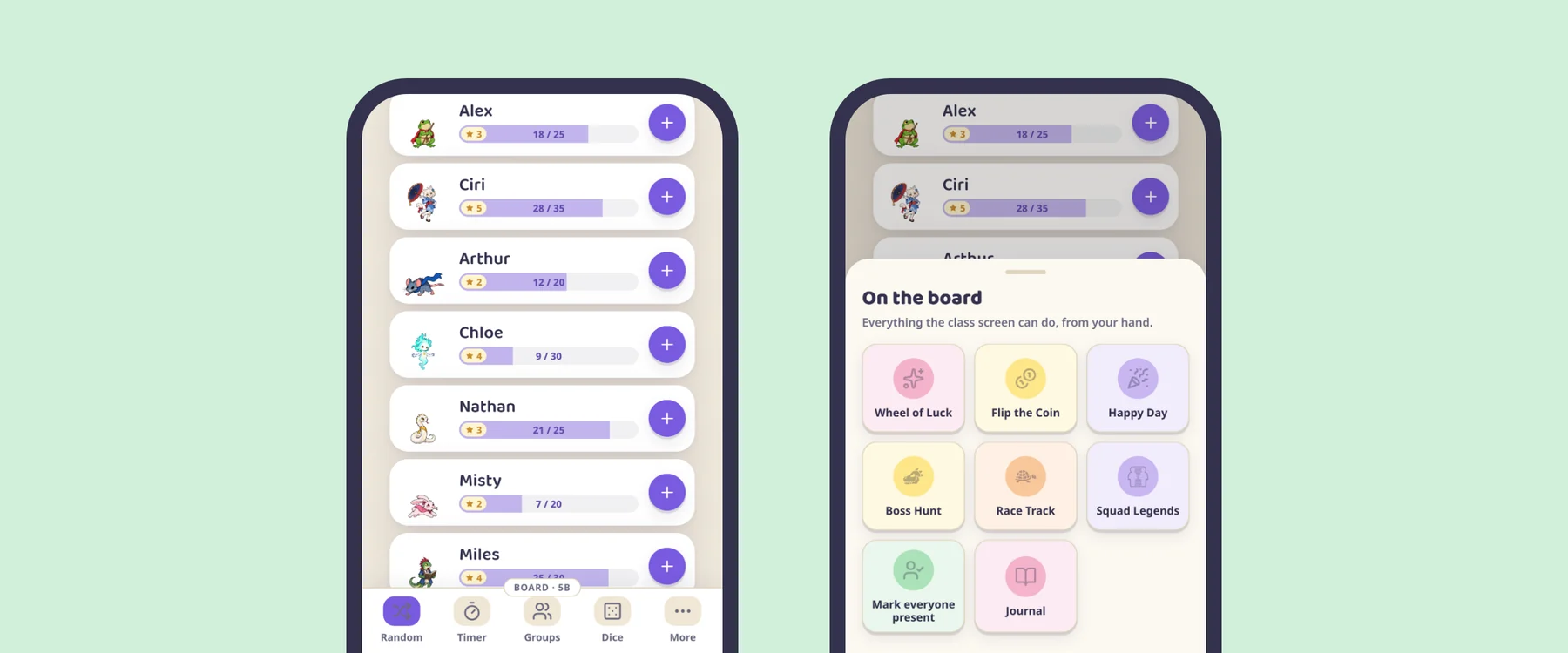
Teach from anywhere in the room. Your phone controls the class screen: random picks, the timer, groups, points and the class games.
On the laptop that runs the TV or projector, open your class as usual.
Go to learnify.fun on your phone and sign in with the same account.
The remote appears at the bottom of your phone with the class name on it. While your phone is connected, a small phone badge shows on the class screen.
The bar at the bottom of your phone has the class screen's own buttons:
More has the rest:
To give points, tap + next to a student. Anything your phone opens on the class screen, it can also close.
Setting up a game stays on the laptop: your phone opens it on the class screen, and you fill it in there. Full screen stays there too, because the browser only allows it from the laptop.
No, only you do. The class still plays on the one screen at the front, and students never log in.
Umi is now a little axolotl in the corner of the class screen. She shows how she feels, dances with the class when a student levels up, and can start the class games for you.
Read the post → UPDATE · SEP 14The character picker has new faces, among them Lumi, Raiden, Bosun and Noir. Wrenna, Dozer, Grim and Lotor are the first Metal characters.
Read the post →Free for one class of up to 30 students. Four minutes to set up, and your register is the only thing you bring.